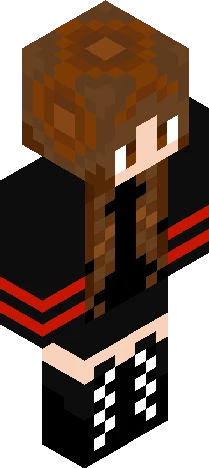
Click and drag to rotate
bleed
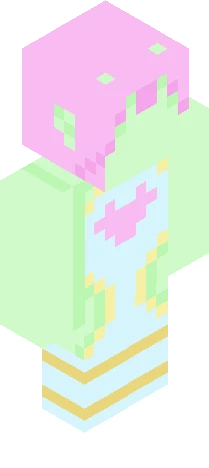
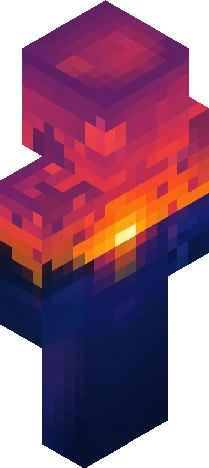
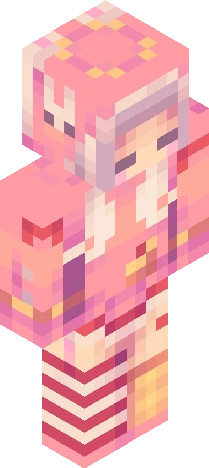
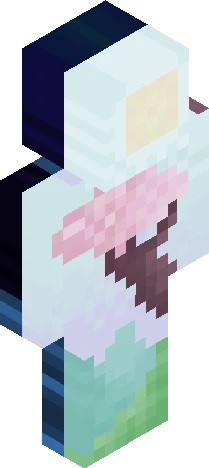
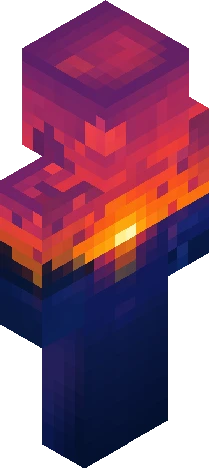
Was It My Fault? - Break
by Nightshade12190 · Minecraft Skins community listing
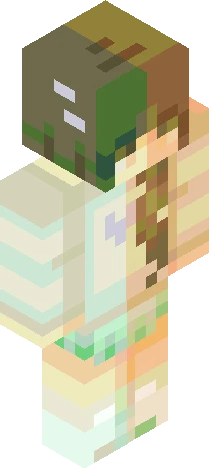
Download Was It My Fault? - Break Minecraft skin for free. Compatible with Minecraft Java, Bedrock, and Eaglercraft. Tagged bleed, bleeding heart, break, broken. Preview it in 3D, open it in the browser-based skin editor, or save the 64×64 PNG.
Uploader notes
+\/ show more \/+ So. . . You might've noticed I ghosted the site for a bit. Long story short, I'm not exactly doing well. Depressed, unmotivated, all that good stuff. I'm putting the 0.5% I have left into real life, and I just can't find the time or energy to make skins for now. Losing all my progress on a skin I worked on or 26 hours didn't help either. (It was lightsourced, in case you were wondering.) I'm going to be taking a break from Skindex. Including comments; I'll read those when I'm back. This isn't me quitting, I *will* be back sometime, and soon. In the words of the Duke, "This isn't goodbye. It's goodbye for now."
64×64 · classic or slim is detected from the PNG
Added value
What’s on this skin page
Preview, categories, compatibility, and tools on this page — not a bare file mirror.
- Creator
- Nightshade12190
- Source
- Minecraft Skins community listing · curated on Eaglercraft Studio
- Format
- 64×64 PNG skin texture
- Model
- Classic or slim (detected from the PNG)
- Compatible with
- Eaglercraft · Minecraft Java · Bedrock (classic skin import)
- Studio tools
- 3D preview · browser editor · avatar maker
- Categories
- bleed, bleeding heart, break, broken
Download
How to download this free skin
- 1Click Download skin to save the free PNG.
- 2Follow Use in Eaglercraft below for client steps, or import the file in Minecraft Java (Profile → Skins).
- 3Optional: open Avatar maker for a Discord / YouTube profile picture from the same texture.
Downloads are free. An optional account only saves favorites across devices.
Edit
How to edit this skin
- 1Open Edit skin to load this PNG in the browser editor.
- 2Paint, swap layers, or remix parts — changes stay on your device until you download.
- 3Export a new 64×64 PNG and use it in Eaglercraft or Minecraft Java.
Eaglercraft · Minecraft
How to use this skin in Eaglercraft
Download the PNG, then apply it in the Eaglercraft client you already use. Menus differ by host. This site does not distribute the game.
- 1Download the PNG with the button above.
- 2Open your Eaglercraft 1.8 client in the browser.
- 3On the title screen, open Options, then the skin control. It is often named Skin or Change Skin.
- 4Upload this PNG, or paste a direct image link if that menu asks for a URL.
- 5Join a world. The skin stays in this browser for that client.
Standard model · 64×64. We never ask for a game password. A skin file is only artwork.
Use this skin in Minecraft
- 1Download the same PNG.
- 2In the Minecraft Launcher, open Skins and choose a new skin.
- 3Pick classic or slim so the arms match this skin, then upload the file.
- 4Bedrock can use this artwork where that device lets you import a custom skin PNG. The file itself is the standard Java skin layout.
Similar skins
More library skins from related categories — curated for discovery, not random filler.